
Getting wifi working on Linux Mint (and Ubuntu) for MacBook Pro 13,2 touchbar
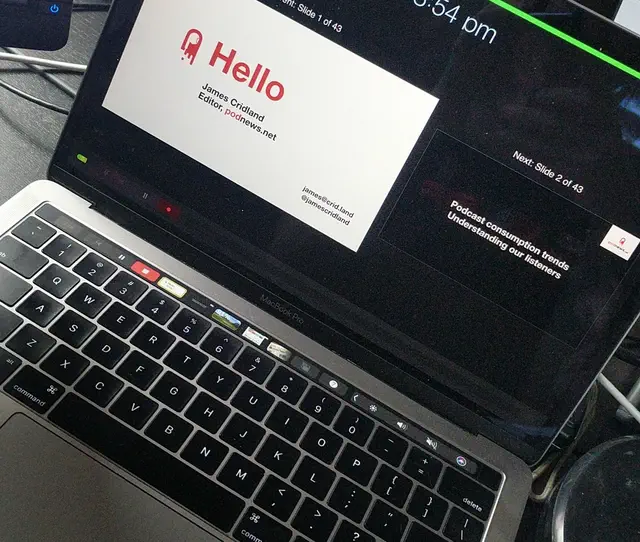
I recently rediscovered my old MacBook Pro in a box.
It was a true lemon, this thing: the battery swelled up 13 months after buying it (I went into the Apple Store and said something about Australian Consumer Law, whereupon miraculously the price for repair suddenly became “free”). And then, nine months later, the screen display driver began failing, requiring a replacement of the entire top of the computer - the screen itself, the keyboard, the lid, everything. Again, that was a repair that was miraculously free thanks to the Australian Consumer Law. (It’s a good law - essentially, suggesting that things should last for as long as you believe is reasonable, which for a computer, I didn’t feel was less than two years).
Bits of it never worked correctly. If you were doing a presentation via HDMI, and the audio was via HDMI as well, then the audio subsystem would frequently time out - so you hit the “next” button and the video wouldn’t play at all because the whole system was confused as to why it wasn’t connected to something that played audio. The workaround for that was to go back then forward again, by which time the audio subsystem would have woken up again; and/or to insist that the venue took audio via the audio jack plug. Apple Support never owned up to this bug - mainly because it was very difficult to replicate.
So, one day, I charged a “I don’t want to speak at your event fee” to one client, who surprisingly paid it, meaning I got to go to their event that I didn’t really want to go to, but also managed to buy myself a decent new MacBook Air: whereupon, this lemon went in a box. Until yesterday because I felt “why not get Linux working on this thing?”
Wifi and the MacBook Pro 13,2
For the record (and obviously not for Google), the output of inxi -Fxz includes:
Machine:
  Type: Laptop System: Apple product: MacBookPro13,2 v: 1.0
    serial: <superuser required>
  Mobo: Apple model: Mac-66E35819EE2D0D05 v: MacBookPro13,2
    serial: <superuser required> UEFI: Apple v: 512.0.0.0.0 date: 04/05/2023
Network:
  Device-1: Broadcom BCM43602 802.11ac Wireless LAN SoC vendor: Apple
    driver: brcmfmac v: kernel bus-ID: 02:00.0
  IF: wlp2s0 state: up mac: <filter>
The symptoms - it won’t log in
I tried Linux Mint 22.2, which most people recommend for this thing. It’s based on Ubuntu. It seems OK.
When you try installing Linux Mint (or, indeed, Ubuntu or Debian or Pop!) it looks like the wifi will work. You can see your wifi network. You try logging in. It pretends that the password you typed in didn’t work. “Authentication error”, it says. It lies.
(If it helps to know, you can tether through Bluetooth with your mobile - but you won’t need to).
There is so much advice online about how to get the wifi working. Some tries to get you to install new firmware (don’t bother). Some gets you to install new firmware, then edit the files so the installation works, then install it again, then update everything in your installation, involving downloading more than a gig of data on your mobile connection, and when you finally reboot it still doesn’t work.
I was a particular fan of one moderator of the Linux Mint forum who testily responded to one hapless newbie that “if only you’d searched for two minutes you’d have found the answer”, without actually giving an answer. Because actually, no, the answer wasn’t there anyway. This gleaming example of customer service still appears quite high up a Google search for getting wifi working with this MacBook Pro. Telling new users to go fuck themselves is quite a gambit.
Getting the wifi to work temporarily
What worked for me was simply typing the following command into a Terminal window:
sudo iwconfig wlp2s0 txpower 10dBm
That makes the wifi work. It’s not very good, it’ll struggle to hear your wifi, it sometimes stops and starts, but it works.
It won’t recover from a reboot, whereupon you’ll need to type it again. But it works.
Getting the wifi to work permanently
- Download
brcmfmac43602-pcie.txtfrom this link - Open the file you just downloaded in Text Editor
- Changed the following lines:
from:
macaddr=xx:xx:xx:xx:xx:xx
ccode=X3
regrev=15
to:
macaddr=00:90:4c:0d:f4:3e
ccode=0
regrev=1
Then open up terminal, and type:
sudo cp ~/Downloads/brcmfmac43602-pcie.txt /lib/firmware/brcm/
sudo reboot
That seems to work, as long as you have 2.4GHz wifi. If you only have 5GHz wifi, then fuck you.
There are other issues with this MacBook and Linux though
1: You don’t have an escape button, because the escape button was on the touchbar, and you don’t have a touchbar that works any more, and so fuck you
2: You’ll discover that if you type anything, about ten keypresses in, the touchpad will click somewhere on the screen, which will either a) delete half of what you’ve just typed; b) move your cursor somewhere inexplicable and thus totally mess up what you’re typing; c) put another window in the front anyway thus ruining your typing and possibly run something you weren’t expecting so fuck you
3: You’ll have to do lots of editing config files to get things to work and so will open vi from the terminal, but the cursor keys on the keyboard don’t work (use H, J, K, L instead) and the escape key, ah ha see point 1, so fuck you (actually you can use CTRL+] because of course)
4: I gather that the audio subsystem won’t work either, which in my line of work is vaguely useful, and there’s no known fix for that, so fuck you
5: Every time you hit the CMD button on the Mac because you want something like CMD+C or CMD+V, you’ll invariably pull up the menu in Linux Mint, which reacts to the CMD button. So not only do you have to learn a whole new OS, you also need to learn to stop using the button you used to use on the same machine when it was running a different OS that Apple can’t be bothered to maintain any more, so fuck you
I used to have a Linux netbook that I used for note-taking. I rather liked CrunchBang, which was a very cut-down but sensible-enough Linux distro for that. But I think I lack the patience to get this all to work on this Linux-hostile hardware, especially if the audio won’t ever work. So I suppose I might just sell the thing instead.
2026 will be the year of Linux on desktop
No, it won’t.